A new Kindle rewards a little setup. Out of the box it will read a book perfectly well, which is exactly why so many people never change a single setting — and then spend the next six months wondering why the battery is flat, where that book they bought has vanished to, or why the screen looks washed out in bed. None of the mistakes below are serious. All of them are easy to fix, and most take under a minute.
1. Leaving Wi-Fi switched on all day
A Kindle's battery is measured in weeks, not hours, and the single biggest drain is a live connection. With Wi-Fi on, the device wakes regularly to check for new purchases, sync your reading position and pull down any newspaper or magazine subscription. Left in a bag on a shelf, it can quietly flatten itself.
Swipe down from the top of the screen and tap Airplane Mode before you settle in to read. Switch it off again when you want to download something new, then switch it back. Books already stored on the device need no connection at all, and your position in a book is held locally until the next sync.
One exception worth remembering: if you also read on the Kindle app on your phone or tablet, syncing is what keeps the two in step. Turn Wi-Fi on for a minute when you finish a session and the handover works properly on the next device.
2. Reaching for the wrong charger
Kindles no longer ship with a power adapter — just a cable — so the first charge often involves whatever is nearest: a phone charger, a laptop port, a USB hub on a monitor. That usually works, but slowly. A laptop's USB socket delivers a trickle of power, and a Kindle that has been in a drawer for a year can take most of a day to come back to life.
What to use instead:
- A reputable 5W to 10W USB power adapter and a wall socket.
- The cable that came in the box, or a decent-quality replacement of the right shape — micro-USB on older models, USB-C on current ones.
- A flat, hard surface rather than a duvet or cushion, which traps heat while charging.
A high-wattage phone or laptop charger will not damage a Kindle. The device draws only what it needs, so it will not charge noticeably faster either. Cheap unbranded adapters and worn cables are a different matter: they are a common cause of "charging slowly" messages, interrupted charges and devices that never quite reach a full battery. It is also worth checking your model, because wireless charging is supported on some Kindles and not others.
3. Waiting until you have 300 books to sort them
This is the classic one. Ten books is fine, thirty is fine, and then a hundred titles arrive and the home screen becomes a wall of covers with no order to it. Collections are Kindle's folders, and they are far easier to build as you go.
On the device, press and hold a book cover, choose Add to collection, then pick an existing collection or create a new one. For bulk tidying, do it on a computer instead: sign in to your Amazon account, open Manage Your Content and Devices, and you can create collections and tick books into them with a mouse. Sorting a hundred titles takes minutes rather than an evening.
Keep the categories simple. Unread, Fiction, Reference, Borrowed and Samples will cover most readers. Then use the filter at the top of the library to show only unread books — the view nearly everyone wants most of the time.
4. Confusing "remove" with "delete"
Two similar-looking options, two very different outcomes. Remove from device deletes the file from the Kindle but keeps the book in your Amazon library, ready to download again whenever you like. Delete from library takes it out of your account permanently, along with your highlights and bookmarks.
When storage runs low, remove rather than delete. If you are heading off somewhere without reliable Wi-Fi, download a few titles before you leave and keep the rest in the cloud.
5. Ignoring the tools that come as standard
None of these cost anything extra, and each one earns its place within a week:
- Dictionary. Press and hold a word to see its definition without leaving the page. A single tap puts it right again.
- Vocabulary Builder. Every word you look up is collected automatically, so you can review them later.
- X-Ray. Available on many titles, it lists the characters and places in a book so you can remind yourself who someone is without flicking back.
- Notes and highlights. They are stored in your Amazon account, where you can review and copy them out.
- Send to Kindle. Your own documents, PDFs and Word files can be sent to the device through the Send to Kindle app or web page, so manuscripts, recipes and travel itineraries can live alongside your books.
- Reading settings. Font, size, line spacing, margins, warm light and dark mode are all adjustable, and the Kindle remembers what you choose.
One small expectation to set: page numbers may not match your paperback edition. Many books show them, others use locations instead, and in either case the percentage read is the reliable guide.
6. Buying the first edition you see
Send a free sample before you buy. You get the opening of the book delivered to your device, which is the cheapest way to test the writing, the formatting and whether this is genuinely the title you meant. Samples are also a good way to audition a new author without committing.
Before paying, glance at the alternatives: many classics are free or close to it, subscription services such as Kindle Unlimited and Prime Reading cover a large catalogue if you already have access, and some titles exist in several editions at different prices. If you do buy something by accident, Amazon has a returns process for digital purchases — check the current terms in your own account rather than trusting what you read elsewhere.
A ten-minute setup that pays off
Do these once and the Kindle stops being a gadget you have to think about:
- Turn on Airplane Mode before your next reading session, and turn it off only to download or sync.
- Create three or four collections and file the books you already own.
- Save the Send to Kindle address from your Amazon account to your contacts.
- Set your preferred font, size and brightness once — they stay put.
- Download two or three extra books while you have a connection, so you are never stuck without something to read.
- Test your charger and cable now, rather than the night before a flight.
Two or three of those habits will do more for your reading than any accessory you can buy for it. The rest can wait until the day you notice they matter.
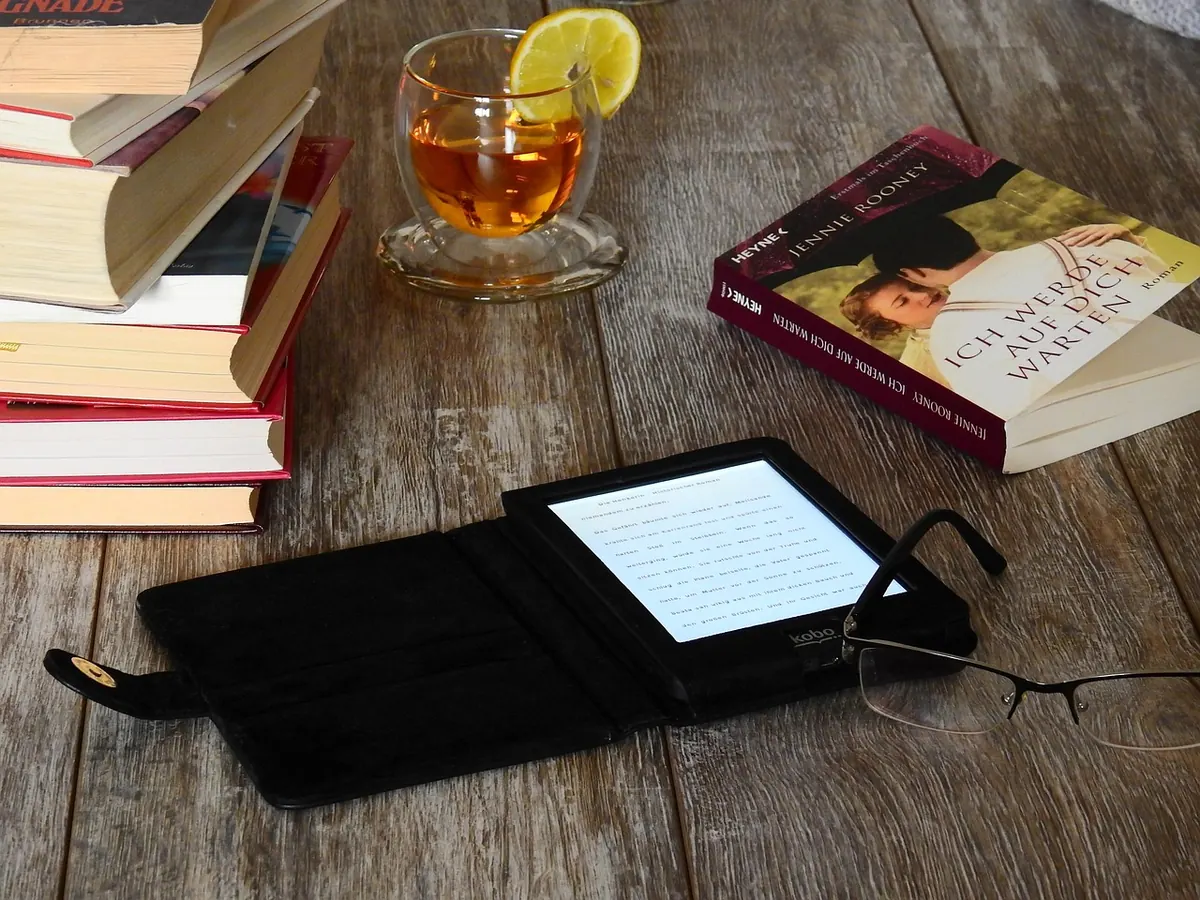
Photo: Bru-nO / Pixabay