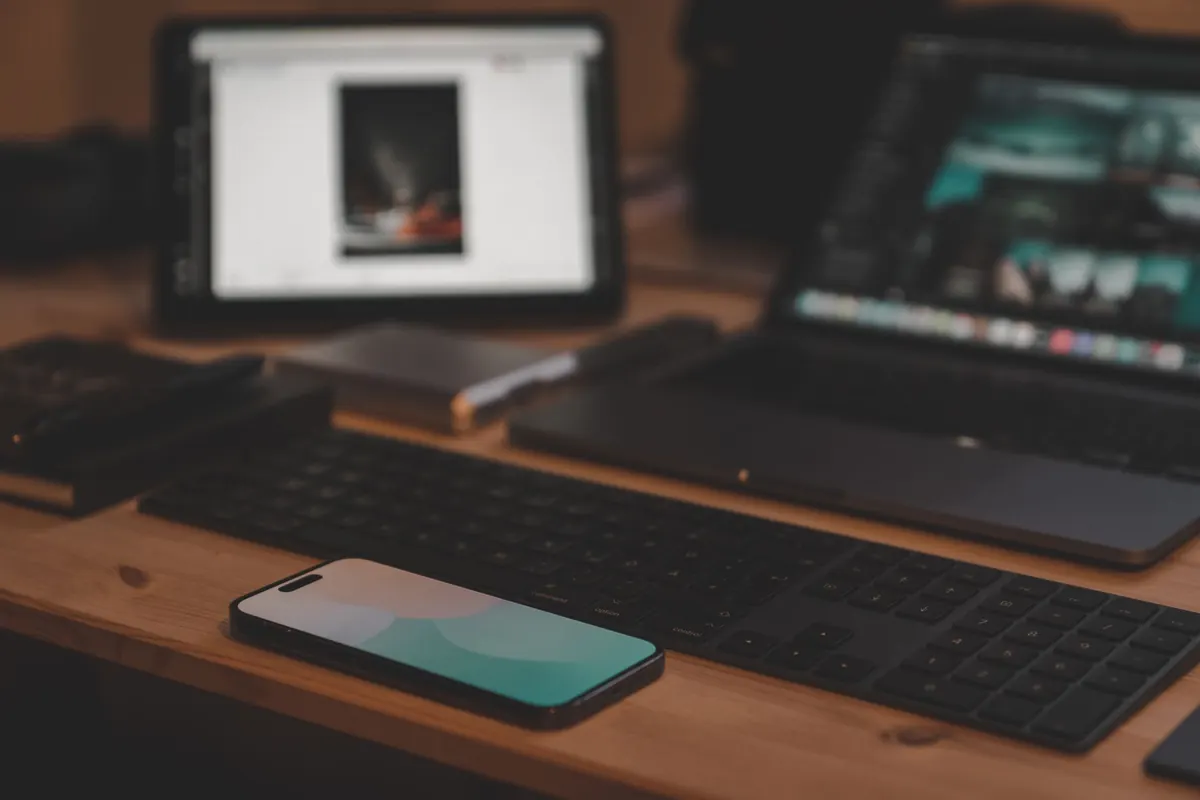
Kindle books do not need a Kindle. If you have a phone in your pocket, a tablet on the sofa and a laptop on the desk, you already own three e-readers — you just need the free Kindle app and the right Amazon account signed in on each one. This guide covers installing the app, signing in with a UK account, and making sure your place in a book follows you from device to device. Twenty minutes now saves a lot of irritation later.
Start with your Amazon account, not the app
Most sync problems trace back to accounts rather than software. Before you install anything, decide which Amazon account you are going to use, and use only that one.
A UK account normally means an account registered on amazon.co.uk. Your marketplace decides the currency you pay in, the titles available to you and where your Kindle library lives. If you have an older amazon.com account with books attached, you can change its country and region settings — look under Account & Lists, then Manage Your Content and Devices, then Preferences. Books you have already bought normally stay in your library, but availability of new titles follows the store you shop in, so check before switching.
The golden rule is simple: one account, many devices. Every phone, tablet and computer you sign in with must use the same email and password. Use a second account by accident and your library will look half-empty and your reading position will refuse to move.
Install the Kindle app on your phone or tablet
The app is free. There is no subscription and no charge for reading books you already own.
- On an iPhone or iPad, open the App Store. On an Android phone or tablet, open Google Play. On a Fire tablet, the Kindle app is already installed.
- Search for Kindle, then check the developer is Amazon before tapping install. There are plenty of lookalike apps in the results.
- Open the app and choose Sign in. Use the same email and password you use on the Amazon website.
- Leave it connected to Wi-Fi for a few minutes while it pulls down your library.
One quirk is worth knowing from the start: you cannot usually buy Kindle books inside the app on iOS or Android. Amazon removed in-app purchasing on phones and tablets because the app stores take a cut of digital sales. Buy the book on amazon.co.uk in your browser instead, then open the app — it will appear in your library. If it does not, give it a sync.
Set up Kindle on a PC, Mac or Chromebook
On a Windows PC or a Mac, download Kindle for PC or Kindle for Mac from Amazon's website rather than a third-party download site. Sign in once and your whole library appears. You can download individual titles for offline reading, which is handy on a laptop you take travelling.
If you cannot install software — a work laptop, a school Chromebook, a Linux machine — use Amazon's web reader in a browser. It needs a connection, but there is nothing to install and your progress syncs like any other device. It is also the quickest way to check something in a book on a computer that is not yours.
If your library looks wrong, check the sign-in
A blank or half-empty library almost always means the wrong account. Tap the menu, sign out, then sign back in carefully, typing the password rather than relying on autofill. If you genuinely have two Amazon accounts, note which one holds your books and sign out of the other everywhere.
It is also worth confirming your region. In the app, open your settings and check the account details shown; on the website, the country and region settings under Preferences control which store you shop in. If you have recently moved or changed payment details, that is the page to check.
How syncing keeps your place across devices
Amazon calls this Whispersync. It records your last page read, plus your highlights, notes and bookmarks, and passes them between devices signed in to the same account. Open a book on your phone at lunchtime and your tablet will offer to jump to that spot in the evening.
- Stay online occasionally. Progress travels when a device has a connection, so let your phone reach Wi-Fi or mobile data at some point during the day.
- Accept the prompt. When a device asks whether to go to the furthest page read, say yes — that is the sync doing its job.
- Nudge it manually. If a book is stuck, open the app's library menu and look for a sync option, or close and reopen the app while connected.
- Collections follow you. Folders you create in the app generally sync across your devices once you are signed in to the same account.
Offline reading is the exception. A book downloaded to your phone will not know where your tablet got to until it next connects. If you read on a flight, expect to catch up when you land.
Make each screen comfortable
The app is more adjustable than it looks. Tap the top of the page while reading to bring up the display settings.
On a phone, nudge the font up a step or two and shorten the lines slightly; a small screen with wide margins wastes the space you have. A dark background at night is easier on the eyes than a dim white page, and turning off page-turn animations makes the whole thing feel quicker.
On a tablet, landscape orientation often gives you two columns, which reads much more like a printed page. Adjust the brightness to suit the room rather than leaving it at full.
On a PC, resize the window to something narrower than the full screen — long lines are tiring. The arrow keys and Page Up and Page Down normally turn pages, and full-screen mode hides the rest of your desktop.
Useful extras across all three: tap and hold a word for the dictionary, look up characters and places with X-Ray, and switch on Word Wise for books with trickier vocabulary.
A short routine that keeps everything in step
Buy books on the Amazon website rather than in the app, download anything you want to read offline before you leave the house, and let your phone see a network once a day. Sign in with one account everywhere and check that account if something looks missing.
Do that and the device stops mattering. You can start a chapter on the train, carry on at your desk, and finish it in bed on a tablet — same book, same page, no bookmark required.